When to use this tool
- Compressed social photos
- Marketplace product images
- Old family photos
- Slides and screenshots
AI image tool
Improve the practical quality of a photo before you publish, print or reuse it. The enhancement instruction asks to preserve the scene while improving texture and edges.
JPG, PNG and WebP · 1536 px maximum output edge · 1 credit per task
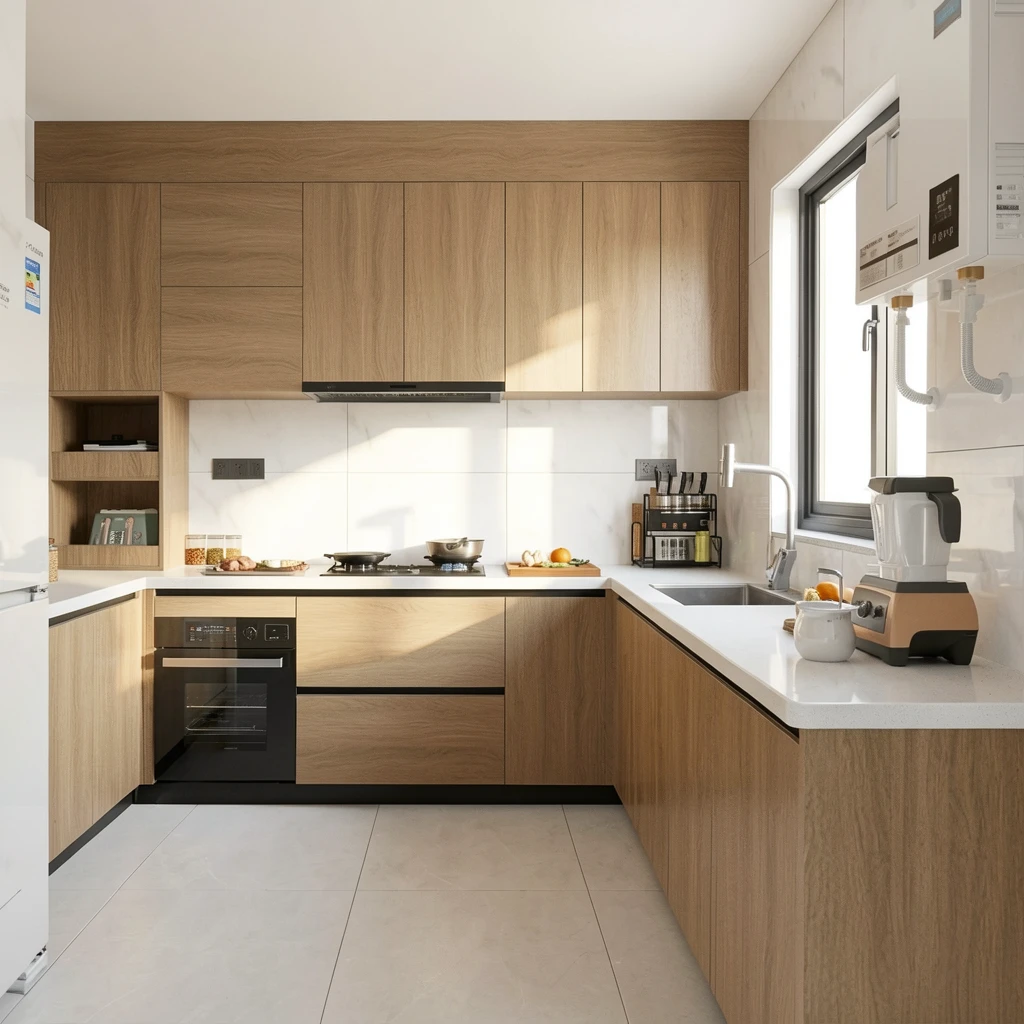
Compressed photos, small product images, screenshots and older scans are good candidates. Start with the original file when available because repeated downloads lose detail.
The enhancement instruction asks to preserve the scene, but AI enhancement can make uncertain detail look plausible. Check logos, faces, numbers and other information-sensitive areas at 100%.
No. The model renders a larger image and combines edge, texture and noise recovery. It is still an enhancement estimate rather than a pixel-exact recovery.