When to use this tool
- Family photo scans
- Faded album pictures
- Low-resolution archive copies
- Photos prepared for a memorial or family history
AI photo restoration tool
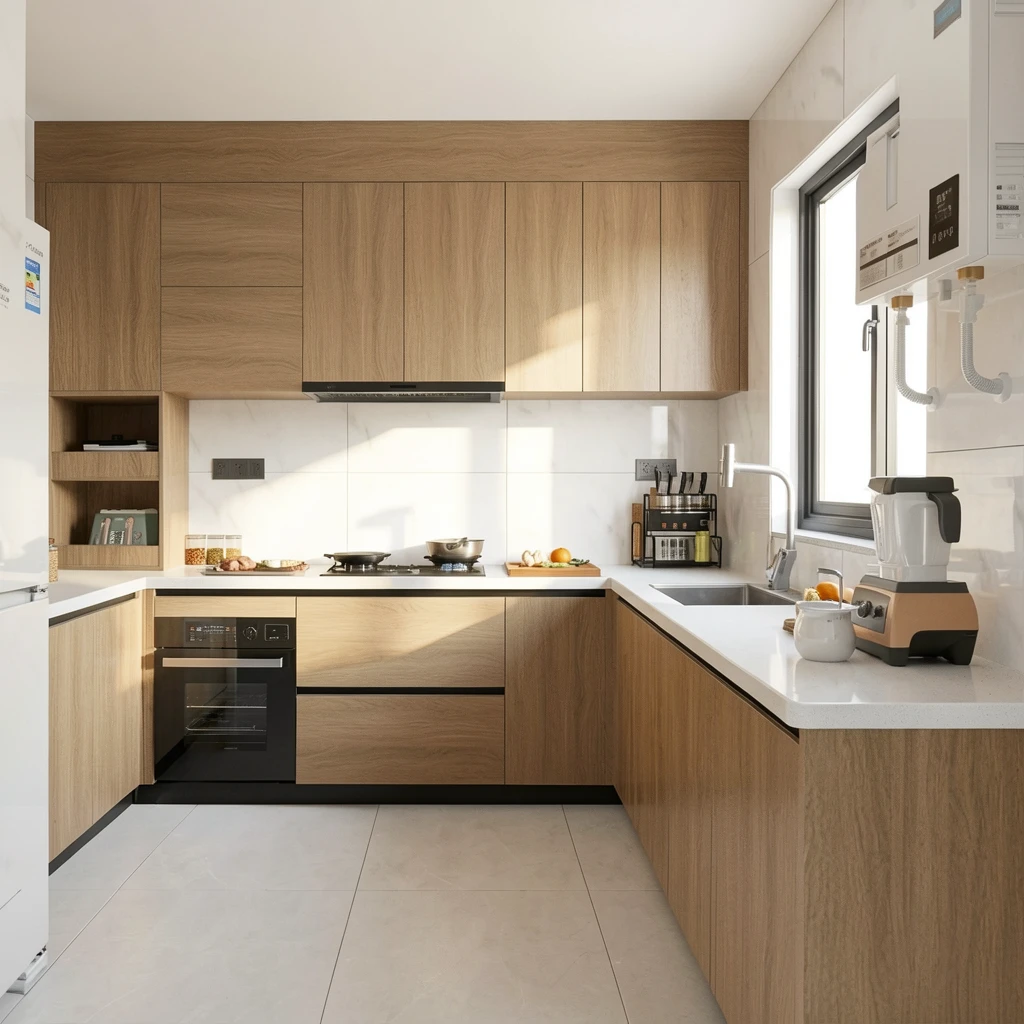
Preview a free restoration example, then give a scanned or compressed family photo a cleaner, more readable version for sharing and archiving. The workflow asks the model to preserve faces and the original scene while repairing softness, contrast and compression damage.
JPG, PNG and WebP · up to 10 MiB · inspect faces and text before relying on the result
No. It can render a plausible face, but it cannot know which features were lost. Treat a heavily damaged result as an artistic reconstruction, not evidence.
This page focuses on restoration and contrast. It may preserve the original monochrome appearance; use a separate colorization workflow when color is the goal.
Use the original scan for records. The enhanced file is useful for viewing, printing and sharing, but generative changes can affect information-sensitive details.